
The Geo Controller Authentication API allows external applications to establish an authenticated connection with Geo Controller installed on your WordPress website.
External applications authenticate using the installation’s API Key, Secret Key, and an application name. After successful authentication, Geo Controller returns an Access Token that can be used for subsequent geographic lookup requests.
This functionality is available with the Geo Controller Business License.
1. API Transport Modes
Geo Controller supports two API transport modes:
- Legacy WordPress AJAX API — the default transport, compatible with existing integrations.
- WordPress REST API — an alternative transport using versioned REST endpoints.
The active transport is determined by the API Mode configuration in Geo Controller’s REST API settings.
Important: Only the selected public API transport is registered. Do not assume that both endpoints are available simultaneously.
WordPress AJAX Endpoint
When Legacy AJAX API mode is enabled, use:
https://yourdomain.com/wp-ajax.php?action=cf_geoplugin_authenticate
WordPress REST API Endpoint
When WordPress REST API mode is enabled, use:
https://yourdomain.com/wp-json/cf-geoplugin/v1/authenticate
The /wp-json/ path is the standard WordPress REST API URL format. Websites using a customized REST URL structure may have a different endpoint address.
Both transports support GET and POST requests. However, POST over HTTPS is strongly recommended because authentication requires sensitive credentials.
2. Authentication Parameters
Send the following parameters with your authentication request:
| Parameter | Type | Required | Description |
|---|---|---|---|
api_key |
string | Yes | The API Key associated with your Geo Controller installation. |
secret_key |
string | Yes | The Secret Key generated in Geo Controller’s REST API settings. |
app_name |
string | Yes | A name identifying the external application requesting access. |
action |
string | AJAX only | Must be cf_geoplugin_authenticate when using the WordPress AJAX endpoint. Not required for REST API requests. |
All three authentication credentials must be provided. Missing required parameters cause the authentication request to fail.
3. Authentication Examples
The following examples demonstrate how to authenticate an external application using cURL.
Replace yourdomain.com and the example credentials with the values from your Geo Controller installation.
Example A: WordPress AJAX Authentication
curl --request POST \
  'https://yourdomain.com/wp-ajax.php' \
  --data-urlencode 'action=cf_geoplugin_authenticate' \
  --data-urlencode 'api_key=YOUR_API_KEY' \
  --data-urlencode 'secret_key=YOUR_SECRET_KEY' \
  --data-urlencode 'app_name=My External Application'
This example uses the default AJAX transport.
Example B: WordPress REST API Authentication
curl --request POST \
  'https://yourdomain.com/wp-json/cf-geoplugin/v1/authenticate' \
  --data-urlencode 'api_key=YOUR_API_KEY' \
  --data-urlencode 'secret_key=YOUR_SECRET_KEY' \
  --data-urlencode 'app_name=My External Application'
This example requires the WordPress REST API transport to be selected in Geo Controller.
Both examples send credentials in the POST request body rather than placing them in the URL query string.
4. Successful Authentication Response
When the credentials are valid, Geo Controller returns a JSON response containing the generated or existing Access Token.
HTTP 200 — Successful Authentication
{
  "error": false,
  "code": 200,
  "error_message": null,
  "access_token": "GENERATED_ACCESS_TOKEN"
}
The access_token value is unique to the corresponding stored application authorization.
Important: If the same application name has already been authenticated using the current Secret Key, Geo Controller can return its existing Access Token instead of generating a new one.
Response Fields
| Field | Type | Description |
|---|---|---|
error |
boolean | Indicates whether authentication failed. |
code |
integer | The response status code. |
error_message |
string or null | Contains an error description when authentication fails. Returns null on success. |
access_token |
string | Returned after successful authentication. Required for subsequent authenticated geographic lookup requests. |
5. Authentication Errors
If authentication fails, Geo Controller returns an error response describing the problem.
HTTP 400 — Invalid Credentials
Example:
{
  "error": true,
  "code": 400,
  "error_message": "API key is invalid."
}
Other possible authentication errors include:
Secret key is invalid.— the supplied Secret Key does not match the current installation key.Required fields are not defined.— one or more required authentication parameters were not supplied.
These error messages are returned by Geo Controller’s authentication handler.
License Restrictions
Public authentication and lookup functionality requires the appropriate Geo Controller Business License.
When the license does not permit API access, Geo Controller’s AJAX transport returns a license-related error. In REST mode, the public authentication route is not registered without the required license level.
If an endpoint is unavailable, verify both the active API transport and the license configuration.
6. Using the Access Token
After successful authentication, store the returned access_token securely in your application’s server-side configuration or protected credential storage.
The Access Token is used together with the installation’s API Key for subsequent geographic lookup requests.
Example: Geographic Lookup Using AJAX
curl --request POST \
  'https://yourdomain.com/wp-ajax.php' \
  --data-urlencode 'action=cf_geoplugin_lookup' \
  --data-urlencode 'api_key=YOUR_API_KEY' \
  --data-urlencode 'access_token=YOUR_ACCESS_TOKEN' \
  --data-urlencode 'ip=8.8.8.8'
Example: Geographic Lookup Using REST
curl --request POST \
  'https://yourdomain.com/wp-json/cf-geoplugin/v1/lookup' \
  --data-urlencode 'api_key=YOUR_API_KEY' \
  --data-urlencode 'access_token=YOUR_ACCESS_TOKEN' \
  --data-urlencode 'ip=8.8.8.8'
Use the lookup endpoint corresponding to the active API transport.
The IP address in these examples is illustrative. Geographic lookup results depend on the IP address submitted and the information available to Geo Controller.
7. Managing Access Tokens
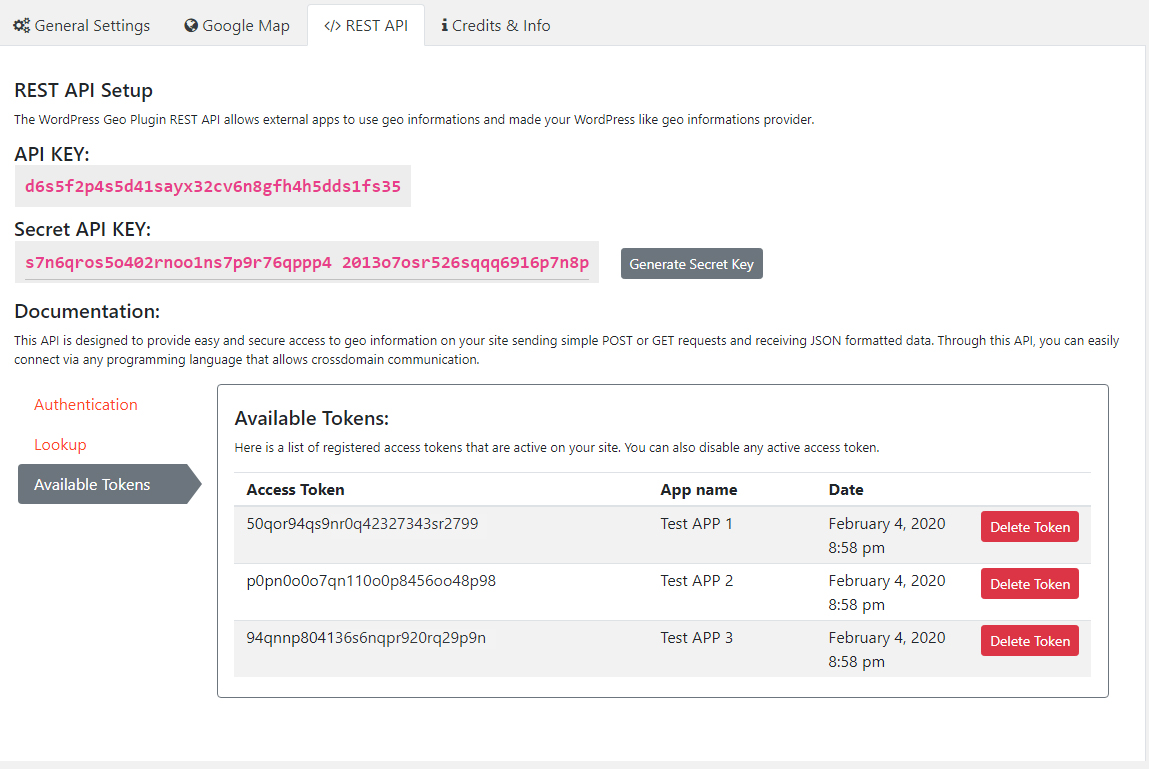
Geo Controller provides an Available Tokens section within its REST API settings.
This section allows administrators to review previously authorized external applications and their stored access tokens.
To review or revoke an application token:
- Open the WordPress administration dashboard.
- Navigate to Geo Controller’s REST API settings.
- Open the Available Tokens tab.
- Locate the external application you want to review.
- Use the available token management controls to remove access when necessary.
Removing a token invalidates that token for subsequent geographic lookup requests.
8. Secret Key Rotation
Geo Controller allows administrators to generate a new Secret Key from the REST API settings.
Generating a new Secret Key invalidates previously issued access tokens associated with the old key.
After rotating the Secret Key:
- Update the Secret Key in each authorized external application.
- Authenticate the applications again.
- Store the newly returned Access Tokens.
- Verify that geographic lookup requests are functioning correctly.
Warning: Secret Key rotation can interrupt all external applications that depend on previously issued access tokens. Plan the change carefully before performing it on a production website.
9. Security Best Practices
Authentication credentials and access tokens should be treated as sensitive information.
- Always use HTTPS. Never transmit API credentials over an unencrypted connection.
- Prefer POST requests. Avoid placing Secret Keys and Access Tokens in URL query strings, where they may be recorded by access logs or monitoring systems.
- Keep credentials server-side. Do not embed the Secret Key or Access Token in publicly accessible JavaScript, HTML, or client-side application bundles.
- Use separate application identities. Give each external application a distinct
app_nameto make token management easier. - Restrict credential access. Only trusted application components and administrators should have access to authentication secrets.
- Revoke unused tokens. Remove tokens associated with applications that no longer require access.
- Rotate compromised credentials. If a Secret Key or Access Token is exposed, revoke affected access and update connected applications.
- Protect API endpoints. Apply appropriate server-level request controls and monitoring without blocking legitimate integration requests.
Important: The authentication endpoint is designed for server-to-server integration. Public browser applications should communicate through a trusted backend rather than exposing Geo Controller credentials directly to visitors.
10. Troubleshooting
Authentication Returns an Invalid API Key Error
Verify that the supplied api_key matches the API Key associated with the current Geo Controller installation.
Authentication Returns an Invalid Secret Key Error
Verify that the secret_key matches the current Secret Key configured in Geo Controller.
If the Secret Key was regenerated, previously configured external applications must be updated.
Endpoint Returns 404 or Is Not Available
Check whether the requested endpoint corresponds to the active API transport.
For WordPress REST API mode, also verify that WordPress REST API routing is functioning correctly.
Confirm that the Geo Controller license permits public API access.
Access Token Is Rejected
Confirm that the token has not been deleted or invalidated by Secret Key rotation.
Make sure the API Key and Access Token belong to the same Geo Controller installation.
Authenticate the external application again if a new token is required.
Application Receives an Unexpected Response
Inspect the HTTP response status and JSON body.
Verify that the application sends the correct parameters to the correct transport endpoint.
Check whether server security rules, caching layers, or other WordPress plugins interfere with the request.
Related Documentation
Summary: Authenticate your external application using the API Key, Secret Key, and application name. Store the returned Access Token securely and use it with the API Key for subsequent geographic lookup requests. Select the correct API transport and manage application access through Geo Controller’s REST API settings.